
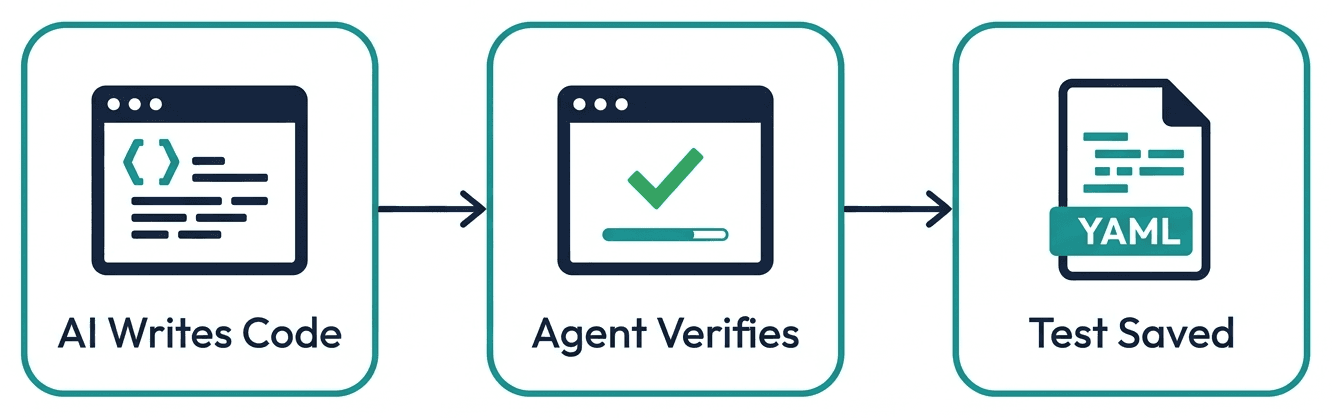
To add automated testing to AI coding tools like Cursor, GitHub Copilot, Codex, and Claude Code, install an MCP-compatible QA plugin that exposes browser automation and test generation as tools your coding agent can call during development.
The agent verifies every UI change in a real browser and commits self-healing YAML tests alongside the code, so no separate QA phase is required.
Why AI-Generated Code Needs Testing More Than Human Code
AI coding tools write code faster than any human. But faster code without testing is just faster bugs.
If you're using Cursor, GitHub Copilot, or Codex to generate code, you've probably noticed the pattern: the AI writes something that looks correct, you ship it, and then something breaks in production that a quick E2E test would have caught. It is the same gap vibe coding runs into, one rung up the seniority ladder.
The problem isn't the AI. The problem is that most AI coding workflows have no verification step. The agent writes code, you review it visually, and you merge. There's no automated check that the UI actually works as intended.
This guide shows you how to close that gap by adding automated QA testing directly into your AI coding workflow, regardless of which tool you use.
Human developers build mental models as they code. They know which edge cases matter because they've seen them break before. AI coding tools don't have that context. They generate statistically likely code, not battle-tested code.
The data backs this up:
- AI-generated code introduces subtle bugs in authentication flows, state management, and error handling: areas where context matters most
- Teams shipping AI-generated code without QA testing report higher rates of production incidents in their first 90 days
- The most common failures are visual and behavioral: the code compiles, the types check, but the UI doesn't work as expected
Unit tests catch type errors and logic bugs. But they can't tell you whether the login flow actually works in a browser, whether the checkout page renders correctly, or whether the navigation breaks on mobile. That requires end-to-end testing, and it's exactly what's missing from most AI coding workflows.
Cursor vs Copilot vs Codex vs Claude Code: how a test tool fits each
The four most common coding agents take different amounts of control, which changes where the test tool plugs in, but the integration mechanism (MCP) is the same across all of them:
| Agent | What it is | Where it runs | How the test tool fits |
|---|---|---|---|
| GitHub Copilot | AI pair programmer / autocomplete + light agent | In VS Code, JetBrains | Agent calls the MCP test tool from chat/agent mode after generating a change |
| Cursor | AI-native IDE (VS Code fork) with agent mode | In the editor | Agent mode invokes the MCP test tool inline during the build session |
| OpenAI Codex | Autonomous task-execution agent | Sandboxed terminal / async | Codex runs the MCP test tool as part of completing the assigned task before opening the PR |
| Claude Code | Terminal-based autonomous agent | Terminal | Deepest integration: installs MCP tools + skills in one command, verifies in-loop |
The mental model that matters for testing: Copilot and Cursor are in-editor collaborators (you supervise; the agent calls the test tool when prompted), while Codex and Claude Code are autonomous engineers (you delegate a task; the agent calls the test tool on its own before returning a PR).
In both cases the right test tool is one the agent can invoke as a callable resource: which is exactly what an MCP server provides.
A test tool that only has a human UI cannot participate in an autonomous agent's loop at all.
This is why "what test tool works for Cursor / Copilot / Codex" has one answer regardless of which agent you use: an MCP-compatible QA plugin. The agent type only changes when the tool gets called, not whether it can be.
The open-source baseline for that shape is Playwright MCP, which gives any agent a browser but leaves the suite to you.
The Missing Piece: MCP (Model Context Protocol)
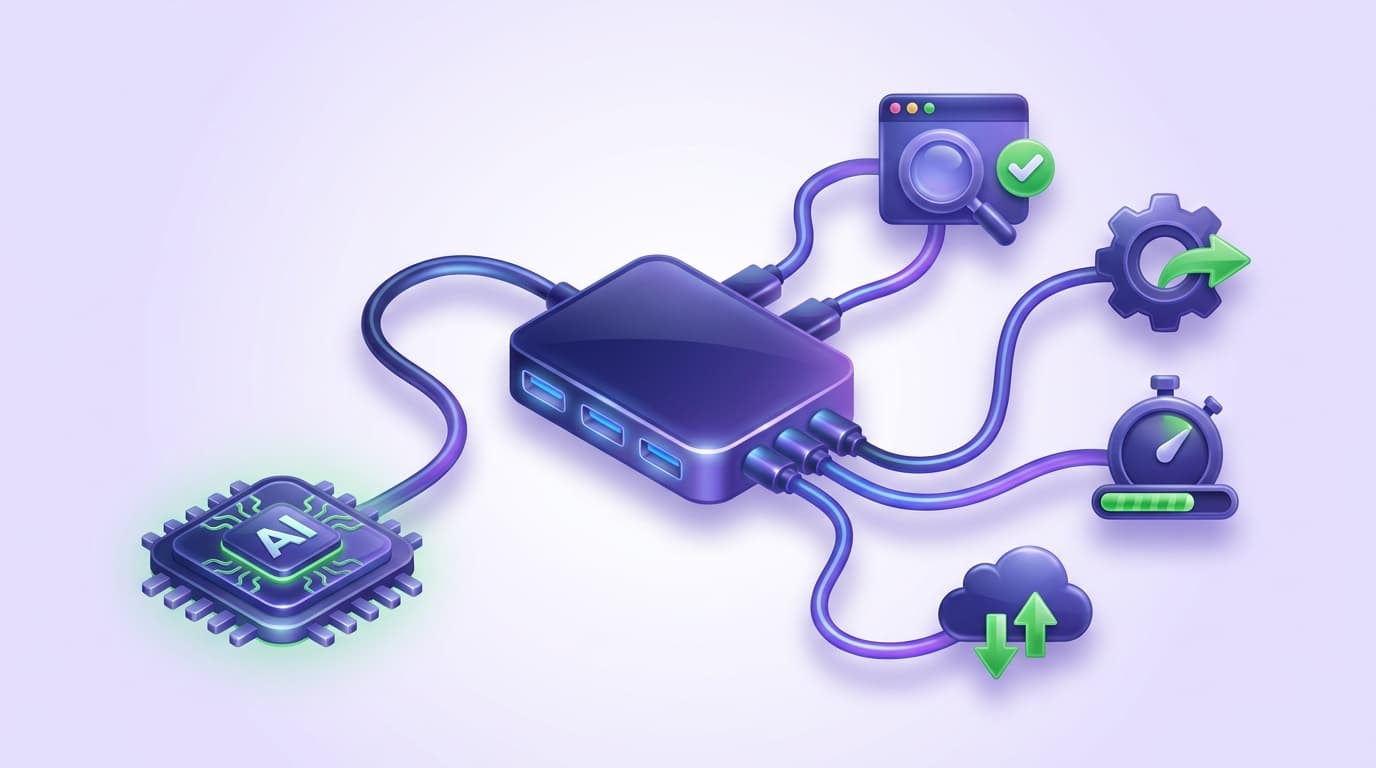
MCP (Model Context Protocol) is an open standard that lets AI coding agents connect to external tools. Think of it as USB for AI: a universal protocol that lets your coding agent talk to browsers, databases, APIs, and testing platforms.
Without MCP, your AI coding tool operates in a bubble. It can read and write code, but it can't:
- Open a browser and see what the UI actually looks like
- Click through a user flow to verify it works
- Run existing test suites and interpret the results
- Generate new tests based on the changes it just made
With MCP, the agent gains eyes and hands. It can open your app in a real browser, navigate through flows, verify that UI changes look correct, and capture that verification as a reusable test.
How It Works: The AI-Native Testing Loop
The testing loop is the same regardless of which coding tool you use:
- You describe what you want: "Add a settings page with dark mode toggle"
- The AI writes the code: Components, styles, state management
- The agent opens a browser: Navigates to your running app via MCP
- The agent verifies the change: Checks that the settings page exists, the toggle works, dark mode activates
- The verification becomes a test: Saved as a YAML file in your repo
- Tests run in CI/CD: Every future PR runs the same verification automatically
The key insight: steps 3-5 happen automatically. The agent doesn't just write code; it proves the code works, then turns that proof into a permanent regression test.
Setting Up in Claude Code
Claude Code has the deepest integration with Shiplight. Shiplight installs MCP tools and three built-in skills in a single command.
Install
claude plugin marketplace add ShiplightAI/claude-code-plugin && claude plugin install mcp-plugin@shiplight-pluginsThis gives your agent browser automation MCP tools plus three skills:
/shiplight verify: Open a browser to inspect pages and validate UI changes/shiplight create-yaml-tests: Scaffold a test project and write YAML tests by walking through your app in a real browser/shiplight cloud: Sync local tests to Shiplight Cloud for scheduled execution and team collaboration
Use It
After your coding agent implements a frontend change, use /shiplight verify to confirm it works:
Update the navbar to include "Pricing" and "Blog" links,
then use /verify to confirm they appear correctly on localhost:3000.
To create regression tests, use /shiplight create-yaml-tests:
Use /shiplight create-yaml-tests to set up a test project at ./tests
and write a login flow test for localhost:3000.
Optional: Enable Cloud Sync
For scheduled runs, team collaboration, and result monitoring, set your API token:
- Get your token from app.shiplight.ai/settings/api-tokens
- Add
SHIPLIGHT_API_TOKENto your project's.envfile - Use
/shiplight cloudto sync tests to the cloud platform
Setting Up in Cursor, Codex, and Other MCP-Compatible Editors
Shiplight's MCP server and Skills support Claude Code, Cursor, Codex, and Copilot CLI. The same install command works across all supported platforms:
claude plugin marketplace add ShiplightAI/claude-code-plugin && claude plugin install mcp-plugin@shiplight-pluginsThis installs the Shiplight Browser MCP server and skills into your coding agent. For the latest platform-specific setup instructions, see the Shiplight Quick Start guide.
Once installed, the MCP tools and workflow are identical across editors. Here's how to use them in each one.
Cursor
Open Agent mode (Cmd+L, then select Agent) and ask the agent to verify your changes.
The same MCP server is available to Cursor's terminal agent, Cursor CLI, if you drive it from a shell rather than the editor.
I just changed the login page. Open the app at localhost:3000/login,
try logging in with test@example.com / password123,
and verify the dashboard loads correctly.
Save a YAML test for this flow.
The agent will launch a real browser, navigate to the login page, fill in credentials, verify the dashboard appears, and save a YAML test file like tests/login-flow.yaml.
Tips:
- Use Agent mode (not Ask mode): Agent mode can execute multi-step MCP tool calls
- Keep your dev server running: The agent needs a live URL to test against
- Review the generated YAML: It's human-readable, so you can tweak assertions before committing
Codex
OpenAI's Codex CLI is a terminal-based agent, similar to Claude Code. After installing Shiplight, prompt Codex directly:
Open localhost:3000 in a browser and verify the homepage
loads correctly. Check that the navigation works and the
hero section displays the right content. Save a test.
Tips:
- Codex runs in the terminal: same agentic workflow as Claude Code
- MCP tools are available automatically once Shiplight is installed
- Generated YAML tests are identical regardless of which agent created them
VS Code (Copilot / Codex)
Open Copilot Chat (Ctrl+Shift+I), switch to Agent mode using the dropdown, and prompt:
Any editor or terminal agent that speaks MCP works the same way, including Gemini CLI. For the Copilot loop specifically, including what Agent mode does and does not check on its own, see testing code written by GitHub Copilot.
Verify that the signup form at localhost:3000/signup works.
Fill in a test user, submit, and confirm the success message appears.
Tips:
- Agent mode is required: Standard Copilot completions and inline chat can't use MCP tools
- Your dev server must be running in VS Code's terminal
- Combine inline suggestions with verification: Let Copilot write the code, then use Chat + MCP to verify it
What the Agent Actually Tests
Once connected via MCP, your AI coding agent can:
| Capability | What It Does | Example |
|---|---|---|
| Navigate | Open any URL in a real browser | Go to localhost:3000/settings |
| Interact | Click buttons, fill forms, scroll | Submit the contact form |
| Verify visually | Check that elements exist and look correct | Confirm the success toast appears |
| Inspect | Read page content, check accessibility | Verify all images have alt text |
| Assert | Validate specific conditions | Confirm the price shows "$49/mo" |
| Generate tests | Save verification as YAML test file | Create tests/settings-page.yaml |
| Run tests | Execute existing test suites | Run all tests in tests/ folder |
Shiplight's MCP server is purpose-built for agent-driven workflows. It supports three connection methods: launching a fresh Chromium instance, attaching to a running browser via CDP, or auto-discovering tabs through a Chrome extension relay.
The generated YAML tests are human-readable and live in your repo:
goal: Verify settings page dark mode toggle
base_url: http://localhost:3000
statements:
  - navigate: /settings
  - VERIFY: Settings page heading is visible
  - intent: Toggle dark mode switch
    action: click
    locator: "getByRole('switch', { name: 'Dark mode' })"
  - VERIFY: Page background changes to dark theme
  - VERIFY: Toggle shows enabled state
Anyone on the team (engineers, QA, PMs) can read these tests and understand what they check. No Playwright or Cypress expertise required.
Running Tests Locally and in CI/CD
Run generated tests locally with a single command:
npx shiplight testFor CI, add them to your pipeline so every PR gets verified:
# .github/workflows/e2e.yml
name: E2E Tests
on: [pull_request]

jobs:
  test:
    runs-on: ubuntu-latest
    steps:
      - uses: actions/checkout@v4
      - uses: actions/setup-node@v4
      - run: npm ci
      - run: npm run build && npm start &
      - run: npx shiplight test --project ./tests
Tests that the agent wrote during development now run automatically on every pull request. When the UI changes, intent-based steps self-heal automatically; you don't need to update locators manually.
Common Patterns by Workflow
Pattern 1: "Write and Verify" (Most Common)
1. Ask AI to implement a feature
2. Ask AI to verify it works in the browser
3. Ask AI to save the verification as a test
4. Commit code + test together
Best for: Feature development, bug fixes.
Pattern 2: "Test-First with AI"
1. Write YAML test spec describing desired behavior
2. Ask AI to implement code that passes the spec
3. Run the test to confirm
4. Iterate until green
Best for: Well-defined requirements, spec-driven teams.
Pattern 3: "Review and Harden"
1. AI writes code (with or without testing)
2. Before merging, ask AI to review the change
3. AI runs security, accessibility, and visual checks
4. AI generates regression tests for anything it finds
Best for: PR reviews, pre-merge quality gates.
FAQ
Do I need to know Playwright or Cypress to use this?
No. The agent handles browser automation through MCP. Tests are saved as YAML files with natural language statements: no framework-specific code needed. The YAML runs on Playwright under the hood, but you never write Playwright code.
Can I test against localhost?
Yes. Unlike cloud-only testing tools, MCP-based testing runs a real browser on your machine. It connects to whatever URL you specify: localhost:3000, a staging URL, or production. You can also attach to an existing browser session with real data and authenticated state.
Does this work with existing test suites?
Yes. Generated YAML tests run alongside your existing tests. You don't need to replace Playwright, Cypress, or Jest. Just add the YAML tests as an additional layer.
What happens when the UI changes?
YAML tests use intent-based steps (e.g., "Click the submit button") rather than brittle CSS selectors. When the UI changes, the agent re-resolves the intent to find the right element. If the button moves or gets restyled, the test still passes as long as the behavior is the same.
Which AI coding tool has the best testing integration?
Claude Code has the deepest integration with built-in skills (/shiplight verify, /shiplight create-yaml-tests, /shiplight cloud) installable in a single command. Cursor is the most popular choice. All four tools produce the same YAML test output and use the same MCP server under the hood.
What is the best test tool for coding agents like Cursor, Copilot, and Codex?
An MCP-compatible tool the agent can call during its own session, because the agent rather than a human needs to invoke testing. Shiplight installs once and is callable by Cursor, Copilot, Codex, and Claude Code alike. Agent type changes when testing gets called, not whether it can be.
Does one test tool work across Cursor, Copilot, and Codex, or do I need different tools?
One tool works across all of them. Cursor, Copilot, Codex, and Claude Code all support the Model Context Protocol, so a single MCP-compatible test tool integrates with every one of them: same install command, same YAML test output, same self-healing engine.
You do not need a separate testing tool per agent. The differences between the agents (editor-based vs autonomous, supervised vs delegated) affect your workflow, not your tool choice.
Do I need a Shiplight account?
No. Browser automation and local testing work without an account. You only need a Shiplight API token if you want cloud features like scheduled runs, team collaboration, and result dashboards.
References
Playwright, Model Context Protocol, Claude Code, Cursor, OpenAI Codex, GitHub Copilot
Related posts
Guides
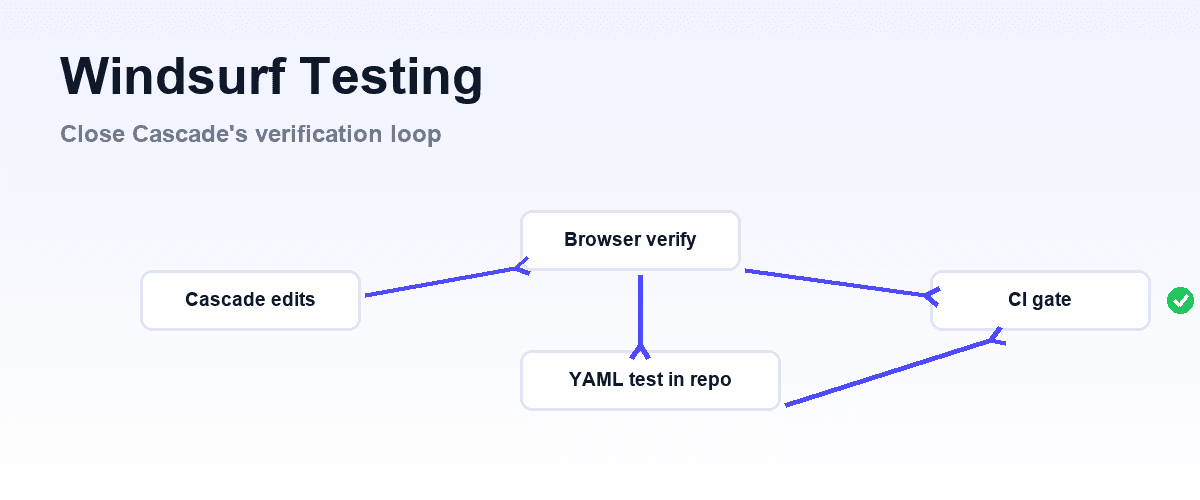
Windsurf testing
Aug 3, 2026 · 10 min read
Guides
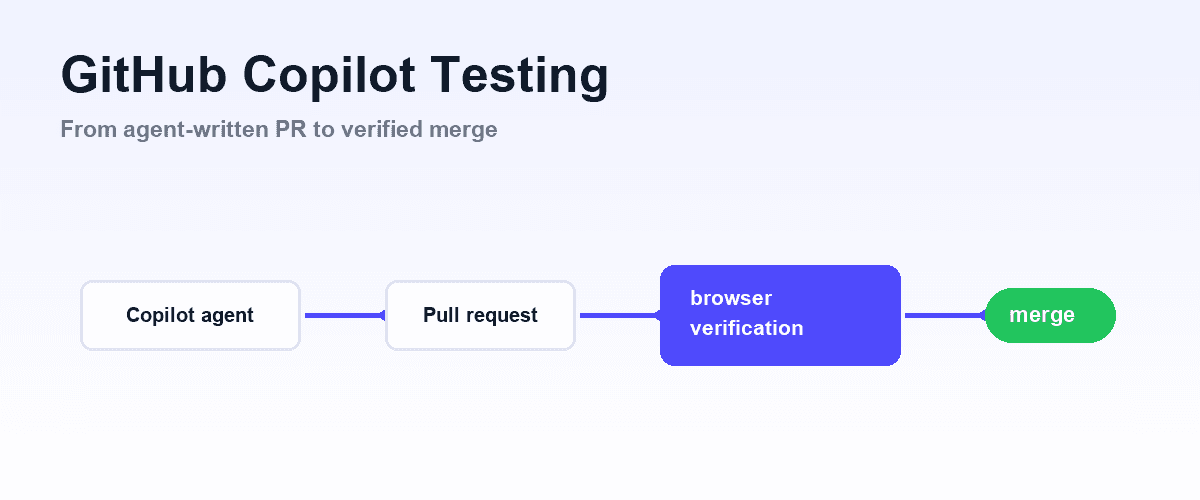
GitHub Copilot testing
Aug 3, 2026 · 10 min read
AI Testing
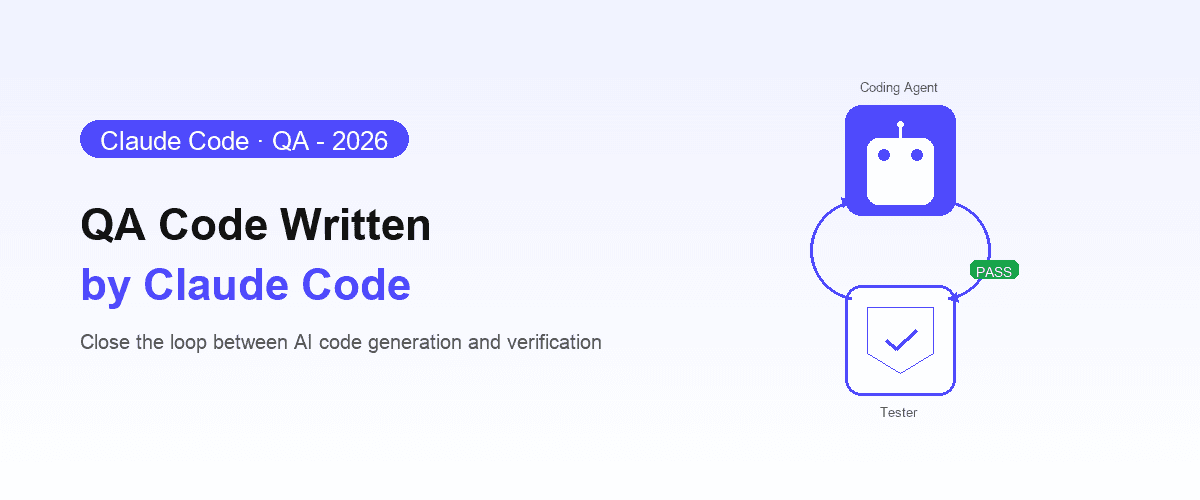
How to QA code written by Claude Code
Apr 10, 2026 · 10 min read
AI Testing
OpenAI Codex testing
Apr 10, 2026 · 6 min read
AI Testing
Agent-native autonomous QA
Apr 6, 2026 · 10 min read
AI Testing
Best AI QA tools for coding agents
Apr 15, 2026 · 10 min read
Engineering
What is agent-first development?
Apr 6, 2026 · 9 min read
Guides
MCP for testing
Apr 1, 2026 · 11 min read